¶ Card
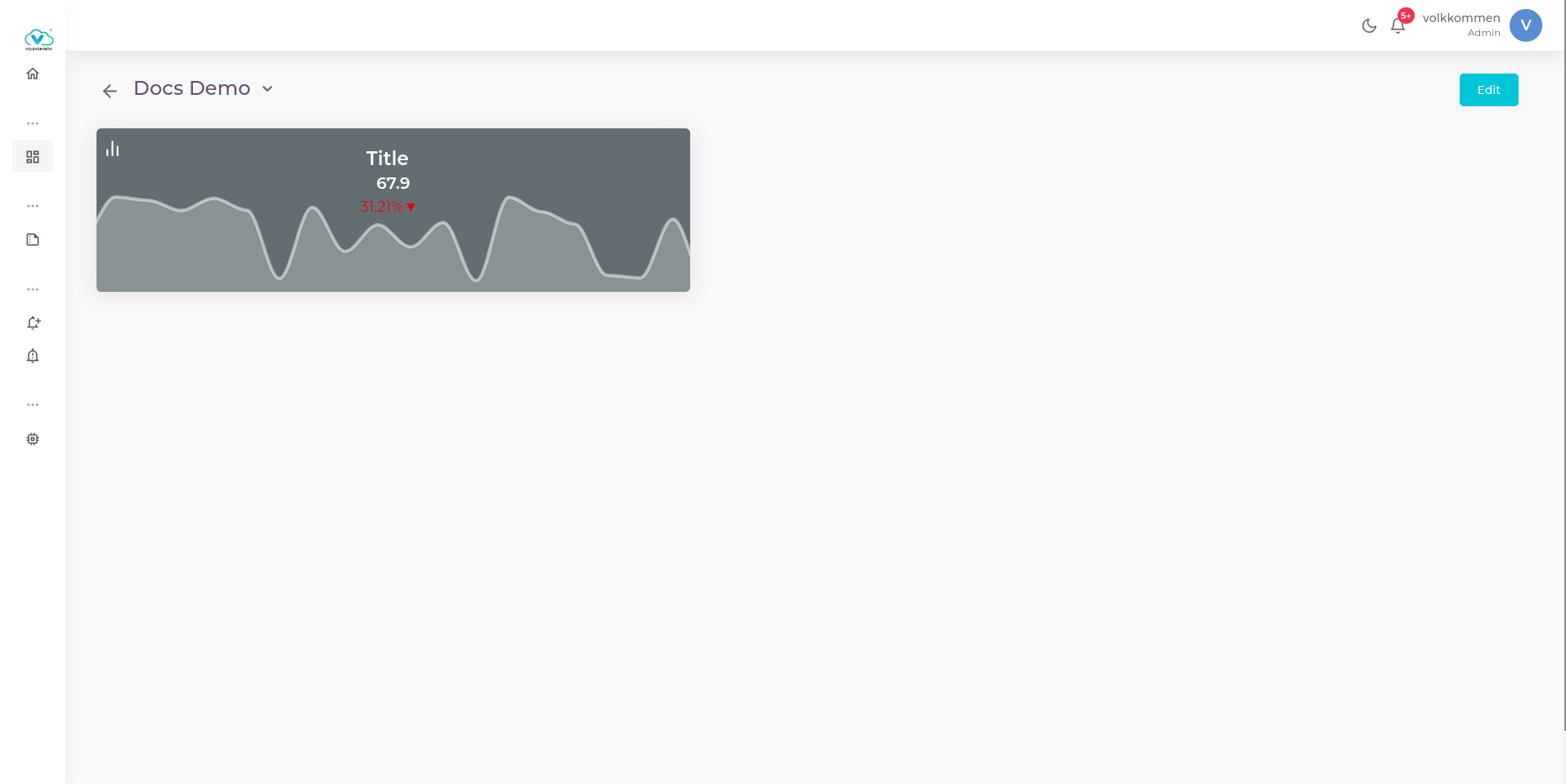
Our Card Widget offers an amazing visualization experience by providing a detailed overview of specific data. The card primarily focuses on displaying the latest data of a given parameter, ensuring that users stay updated with the most recent information.
¶ How to create a card
The screen on the right side is the widget features editing window. Here’s how to create a card:
- Enter Title: Start by entering a title for your widget in the input box.
- Adjust Title Size: Use the slider to change the size of the title.
- Select Title Color: Use the color picker to choose the title color from a wide variety of options.
- Add Subtitle: Enter the subtitle in the subtitle input box that appears.
In the next section, you’ll find additional features that provide deeper insights into the data:
- History Plot: Enable this feature to display an area chart within the card. This chart shows the trend of the selected parameter based on the last 20 data polling.
- Card Color: Choose a color for your card from the color picker if you've selected a static color.
- Threshold-Based Coloring: For a more advanced option, enable threshold-based coloring, which adjusts the card's color based on the parameter’s value.
This configuration ensures a customized and insightful card widget for your dashboard.
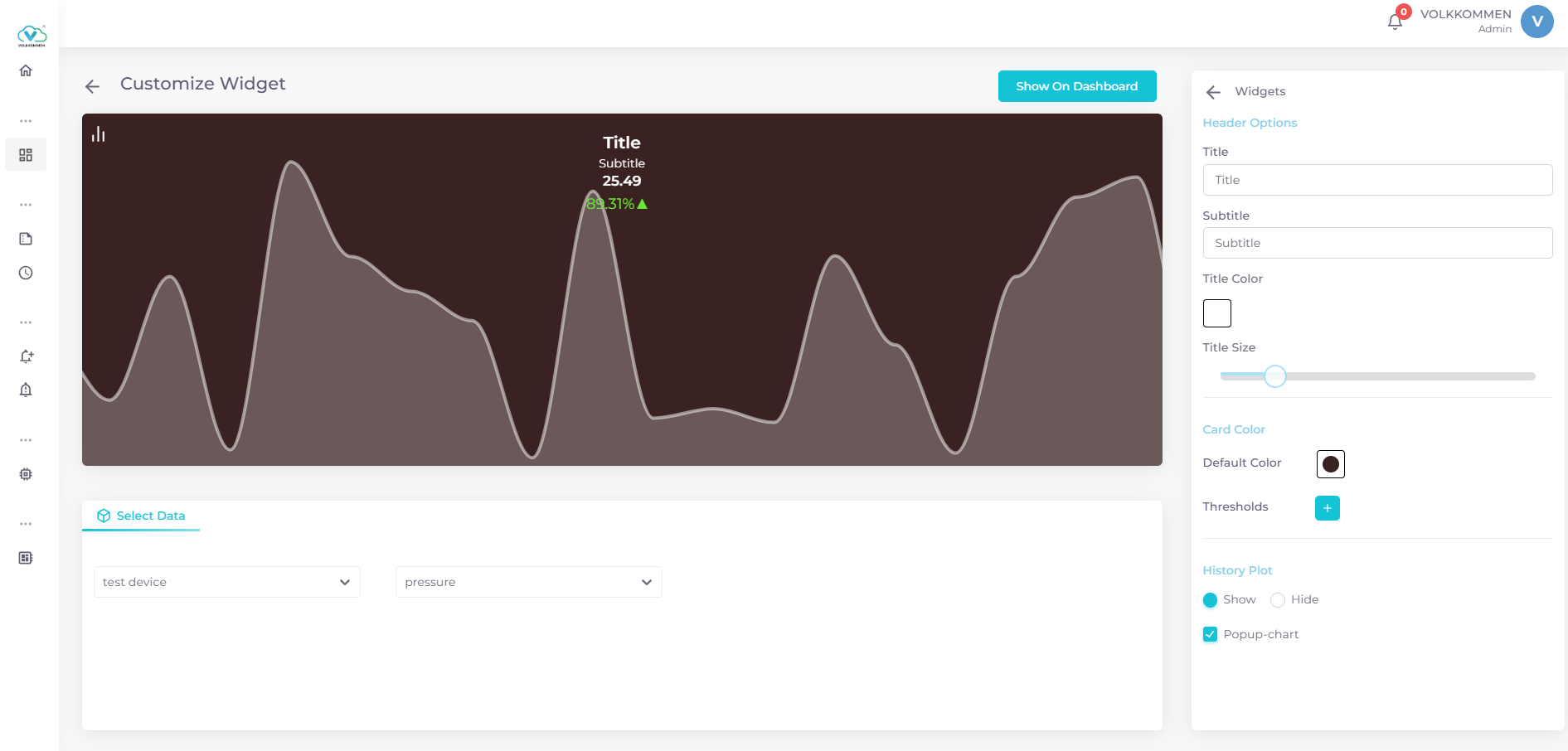
Beneath that, you will find a Popup Chart checkbox. Enabling this feature adds a Chart Button to the card. When clicked, it will display a chart showing the historical data as well, giving you a deeper understanding of the parameter.
After configuring all the necessary features, click the "Show on Dashboard" button to display the created widget on your dashboard and click "Save" to save it on dashboard.