¶ Dashboard Features
The Dashboard Features outline the powerful tools available to customize and manage your dashboards effectively.
¶ Managing Widget Layout
The dashboard uses Grid Layout, which provides a flexible and interactive grid system for arranging widgets. Each widget on the dashboard is:
- Draggable: Click and drag a widget to reposition it anywhere on the grid.
- Resizable: Use the resize handle (typically at the bottom-right corner of a widget) to adjust its size.
- Responsive: Widgets automatically adjust to fit the dashboard's layout while maintaining their relative positions and sizes.
To rearrange or resize widgets:
- Click the Edit button at the top to enter edit mode.
- Drag a widget to a new position or resize it using the resize handle.
- Once satisfied with the layout, click the Save button to persist the changes.
¶ Editing Dashboard Features
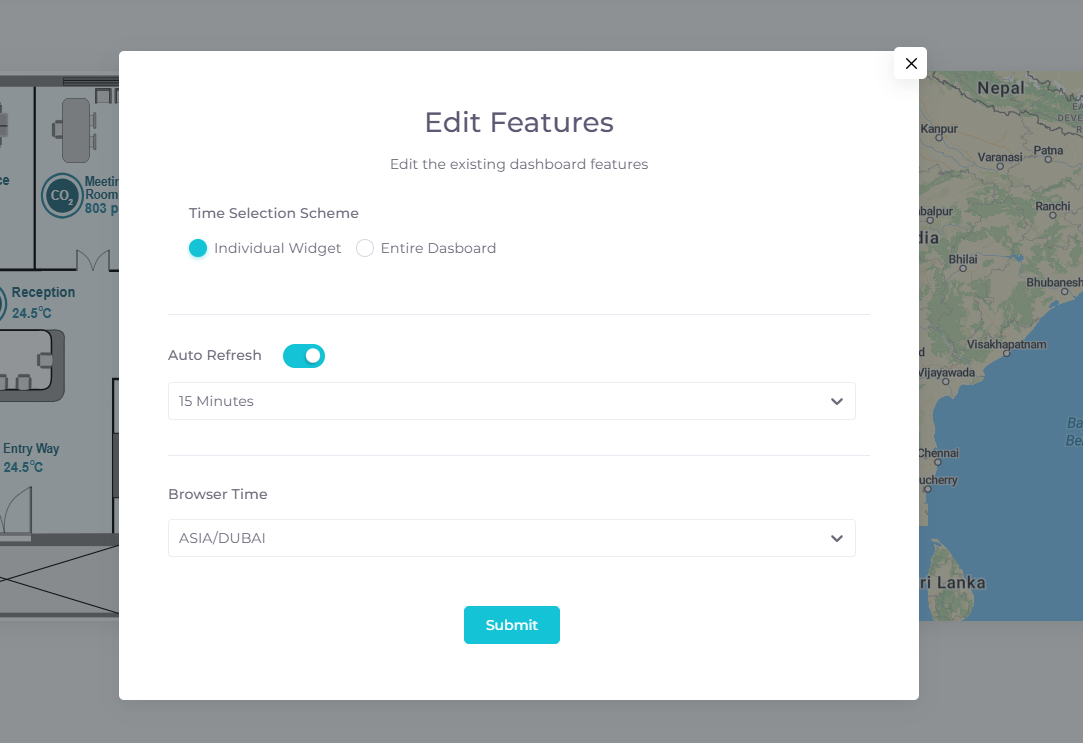
You can customize dashboard settings to control how data is displayed and refreshed. These settings include time selection schemes, auto-refresh intervals, and timezone preferences.
To edit dashboard features:
- Navigate to the main Dashboard page, locate and open the dashboard you want to edit.
- Click the dashboard settings dropdown in the corresponding row.
- Select Edit Dashboard Features from the dropdown menu.
- A modal window will appear with the following options:
- Time Selection Scheme:
- Individual Widget: Each widget uses its own time range for data display.
- Entire Dashboard: All widgets use a common time range for the dashboard.
-
Auto Refresh:
Enable or disable automatic data refresh. If enabled you can select an interval from the options.
-
Time zone:
Select a time zone for the dashboard.
Click Submit to save your changes.
¶ Importing and Exporting Dashboards
You can import or export dashboards to share configurations or back up your work. These options are available in the dashboard table's action menu for each dashboard.
Exporting a Dashboard
To export a dashboard:
- In the dashboard section, locate and open the dashboard you want to export.
- Click the dashboard settings dropdown in the corresponding row.
- Select Export from the dropdown menu.
- A model.json file containing the dashboard configuration will automatically download to your device.
Note: The export option is only available for dashboards with existing widgets.
Importing a Dashboard
To import a dashboard:
- In the dashboard section, locate and open a new empty dashboard.
- Click the dashboard settings dropdown in the corresponding row.
- Select Import from the dropdown menu.
- A modal window will appear prompting you to select a file.
- Choose a .json file containing a valid dashboard configuration.
- Click Edit to upload and apply the configuration.
Note: The import option is only available for dashboards with no widgets.